Showing posts with label Airtel free GPRS. Show all posts

Saturday, May 2, 2009

Run Skype for free in Airtel Live

0 comments
Hi guys again i came with new tip which is very helpfull to skype users and also for free internet users in airtel through airtel live.

Requirements:

1.Gprs enabled Mobile with Airtel live activated sim .

2. Data Cable or Bluetooth to connect to PC

2.Skype (download)


Procedure:


1. Connect to Airtel Live using Pc suite in windows Xp by editing Access Point to " airtelfun.com " (for in detail settings go trough How to connect to Airtel live ).

2.Install and Run skype complete all the screen names and passwords Procedure. After completing that it will try to sign up with out proper settings to connect to internet , but don't worry simply cancel it.

3.Go to the Tools and select options in that now click on connections finally edit the settings by selecting Https and editing Host & port to " 100.1.200.99 & 8080 " as shown in the screen shots.


4. Now restart ( quit it from task bar by right click on it ) the applications to apply the changes to skype.

5. Now again it will ask you to signup , if u have already account simply cancel the signup procedure and type name and password to login other wise simply fill the signup procedure to create account.

6.Finally it will connect to skype servers and u will have skype running on your desktop for free through airtel live.

NOTE: Using Skype we can connect to internet for free , i will show you how to do it in next post and don't forget to subcrice our feeds for latest updates of tips and tricks

Thank u for your patience in reading my post and i hope that it will work for you.

Visit again for latest updates.......


Friday, May 1, 2009

Run Java based mobile applications (Ucweb,games etc ) in PC

0 comments
Now a days we are using free internet in airtel through Ucweb. we can browse net through Ucweb in mobile only , but now we have a software called kemulator which have the ability to run java based mobile applications ( Games , broswers etc )in PC .

Here i will show u how to browse airtel free internet through Ucweb in PC with good resolution i.e big screen.

Requirements:

1.UCWEB ( Download )

2.K-Emulator Lite (Download)

3.Jre/JDk ( Download )


Procedure:
Step :1 Screen Resolution

Run K-Emulator and go to " View " select " Option "
will have the screen like this.


Edit the screen width and height according to your screen resolution and press " OK ".
Restart the application to apply changes that you made.

Step 2: Network Settings

From the same screen u will find a option with symbol " >>2 " select " Network " under that.


Their select proxy type HTTP and edit the Host and port as " 100.1.200.99 " and " 8080 ".

Step 3:

Now Load the ucweb jar file in to this by browsing with load jar option .


Finally after loading of jar file , it will check for network settings and finishes the checking and settings. Now the we have UCWEB on Pc and browse through it .


Use the same procedure to load Games and another java based mobile application in PC. This software runs all mobile applications in PC.


This is an screen shot of mobile game running on PC .

NOTE: For games no need to set network settings


Thank you for your patience and spending your valuable time in reading my post.

Visit again for latest updates of all tips and tricks

Monday, April 13, 2009

Free Internet in PC through Airtel Live

3 comments
Hi guys i find this new process to get free internet in Airtel (for PC) through Airtel Live with out using any tricks in settings. Here i will show u how to do it.

Let's go to the procedure ,
Requirements:

1.GPRS enabled mobile phone with " Airtel Live " activated sim.
2.Data cable to connect to PC.

Browsers:

1.Firefox any version(new version recommended).

Procedure:

1. Connect to Airtel Live by editing Access Point to " airtelfun.com "

2. Now we have to configure the proxy to firefox.

3.Go to Tools->Options->Advanced->Network their click on settings button.choose manual Proxy configuration option and edit proxy address and port as shown in screenshot and click ok to save the settings.


4.Finally go to the address bar and type https://2unblocksites.com and wait for some to load the
full page

5. After the page loaded in to your browser scroll your mouse to down and their you will find site URL address bar to type any site/web address as shown in screenshot.


6. Finally type the site which u want to surf with out any restrictions......


Enjoy the free internet and plz don't forget to give feedback.

Note:: 1.To access any site u need to go through this https://2unblocksites.com site for each and every time.
2. Chech whether u have typed http instead of https://2unblocksites.com otherwise the page will not load.

Drawbacks: 1.We cannot download files( large) using this method or process
2.Only we can browse the internet.

Wednesday, April 8, 2009

Airtel Free Internet in Mobile

7 comments
This is another trick that i have found.But this is not for PC only for mobile phones and its tested by me currently it is working not only for me and also my friends having sony erricson,nokia 3110c especially.

Why i am saying especially to 3110c because , i tried most of the tricks from different forums,sites etc to get free GPRS internet in my mobile 3110c even Tea shark also ,but its failed . Finally i succeeded in getting internet in my mobile for free.


Procedure:

Let's go to the Procedure

Requirements:

1.GPRS enabled Mobile phone with "Airtel live" activated SIM.

Softwares (or) Browsers u need:


1.UCWEB (Download)

Note: Select or choose the mobile that your are using and download it.

Now go the Settings...

Settings:

For Nokia

1.Go to Menu->Settings->configuration

2.Their click on Default Configuration Settings and select the "Airtel live" as a default which is original given by the Airtel.

3.After that go to Personal Configuration Settings and click on options and select Add new

4.Go to the end and Select access point.

5.Then edit the account name as " Airtel Live! " exactly as shown with out mistakes and go to Access point settings->Bearer Settings->Packet data access point.

6.Their edit its access point as " airtelfun.com " (defaultly it will be internet).and get back to Personal Configuration.

7.Finally u have newly created access point called " Airtel Live! " and click options on it and select activate.

8.Now open the Browser UCWEB and it will check for network connections, after few minutes it will open the web to type url and type the site that u want and wait for the few seconds to load the full page (My advice is to enter the site www.google.com for the first time) .


That's the settings for nokia.

I hope that u will get internet on your mobile also . Thank u for patience to read the entire procedure.

For sonyerricson i don't know how to edit the settings and i feel sorry to say this for sonyerricson users.

Enjoy the free net on mobile......

PLZ give feedback about this post..

Sunday, March 15, 2009

Airtel Free GPRS-Internet

5 comments
Hi guys i got this information from an forum that i want to share it to you . After searching lot of
forums i found this in a pdf document.

Lets go to the procedure ,

Requirements::

1. Mobile with Gprs enabled
2. Data Cable or bluetooth
3. Airtel Sim (Prepaid) with "airtel live" activated
4. PC with Java or Jre must be installed.

Softwares U need:

1. Http Interceptor (download)(Serial_Key)
2. Your-freedom (download)


Sites u need to be Registered:


1. Your-freedom (Register) and Activate the account by email sent by them.


Procedure:
:

1.If you are using the Nokia mobile its Very simple see the below screen shots other wise u need to search for the Access point or APN to edit and type airtelfun.com in APN(accesss point) while connecting to the airtel through dial up or packet data connection.

Follow the screen shots for nokia mobile users.


Step 1:


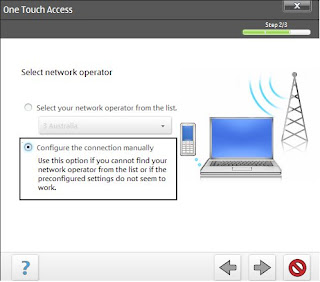
Click on settings on the Pc suite and u will get two options to choose.Their select manually and move to next.

Step 2:
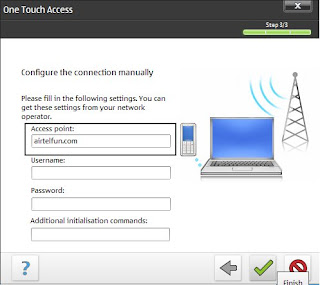


Their u need to edit the Access point to " airtelfun.com " and click finish.

Step 3:
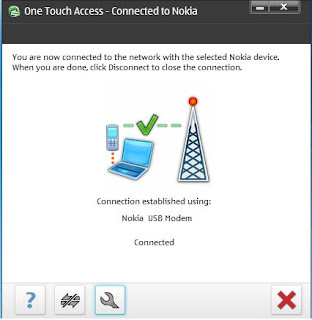


Finally u will be connected to Airtel live at 460.8 kbps (or) 115 kbps.


From here u need software which is downloaded and installed in PC.

Follow the instructions with screen shots carefully.

Step 4: Install and Run the " Http Interceptor " software and follow the screen shots closely which is to be
edited.
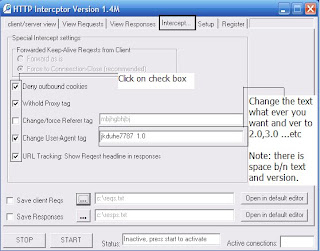


In the above screen shot Check the options and make changes to User-Agent tag under interceptor tab if u want ,other wise use asusual which is shown above .


Step 5:
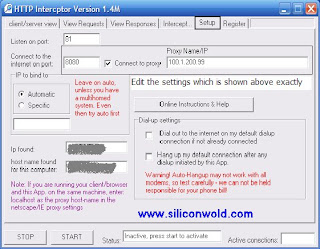


Edit the proxy and port address under Setup tab as shown above

Step 6:
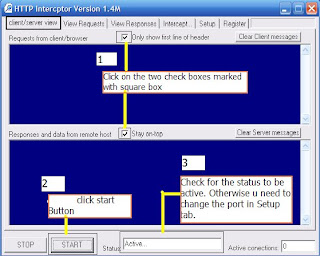


Click Start button after checking the check boxes as shown above and check for the status to be active after clicking on start button. After finishing the above steps carefully dont' close the application.

NOTE:

1.Don't Close the application after Click on start button and minimize to Task bar.


2.First Run the Http Interceptor After Establishing connection to Airtel Live for every time you want to connect to internet.


From here u need another software to connect to the internet through Airtel .

Follow the instructions with screen shots carefully.

Step 7:


Open the the software Your-freedom client which is downloaded and installed in PC.
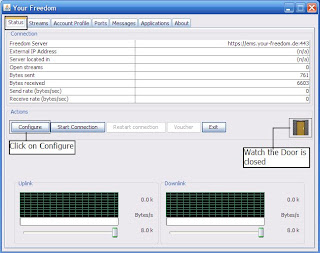


Click on configure to configure the server settings under status tab in your-freedom client software.

Step 8:
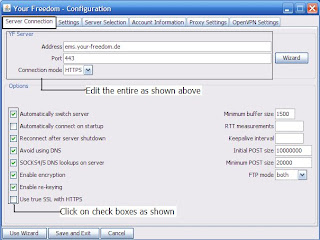


Fill all the fields and mark the check boxes which is shown above (i.e) address,port etc under the server connection tab.

Step 9:
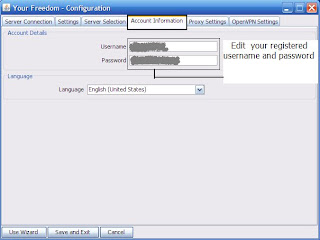


Enter the Registered Username and Password in the Account information tab and select the language u want .

Step 10:
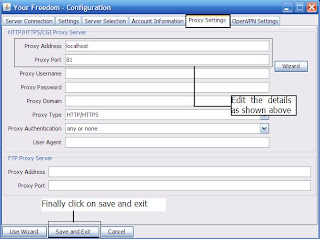


Fill the proxy address and proxy port which is shown in screen shot and follow exactly.Finally click save and exit button under Proxy Settings tab.

Step 11:
After the completion of configure settings window go to Ports tab in you-freedom client
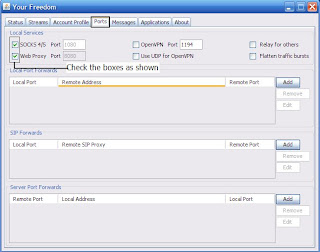


Their Click on both the check boxes (i.e) Sock port and web proxy port under Ports tab as shown above.
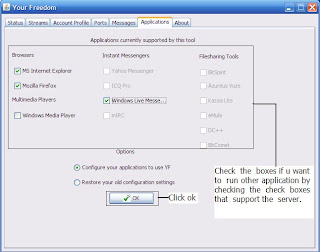

Step 12:


Here click on the check boxes that are going to be used (i.e) If u want to use Mozilla Firefox to browse internet mark on firefox otherwise u want to use IE (Internet Explorer) mark on IE.Then Click on ok button to apply settings.

Step 13:
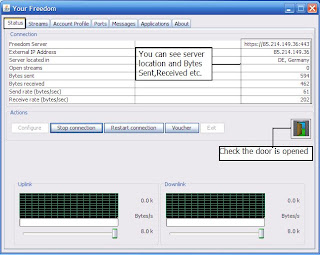


After completion of all the above Steps successfully as shown , go to Status tab and click on Start connection button . In a few seconds u will be connected to internet and u will have server location,bytes sent,receiced information. Finally be sure to check the Door icon is open or not.This shows whether u are fully connected to internet or not .Thats the settings from your-freedom client .

Note: Be sure that the Htpp Interceptor is running and its status is active before Click on start connection button in Your-freedom
 

Tips2All. Copyright 2008 All Rights Reserved Revolution Two Church theme by Brian Gardner Converted into Blogger Template by Bloganol dot com